|
Removal
Instructions
First time users - In the event you do not wish to continue
using the MVPS HOSTS file, you can simply delete the existing
HOSTS file and rename HOSTS.MVP to HOSTS (no 3-letter extension) [default Win8/7]
Note: the "HOSTS.MVP" file was created when running the
installer (mvps.bat) included in the "hosts.zip" (download)
HOSTS.MVP is
a backup of your previous HOSTS file.
Next -
reset the DNS Client service that you should have
disabled when installing the MVPS HOSTS file.
Open the "Services Editor"
Start > Run (type) "services.msc" (no quotes) Ok
the prompt
Win8 users > Control Panel > Administrative Tools >
Services
Scroll down to "DNS Client", Right-click and select:
Properties
Click the drop-down arrow for "Startup type"
Select: Automatic then click Apply/Ok and restart. [screenshot]
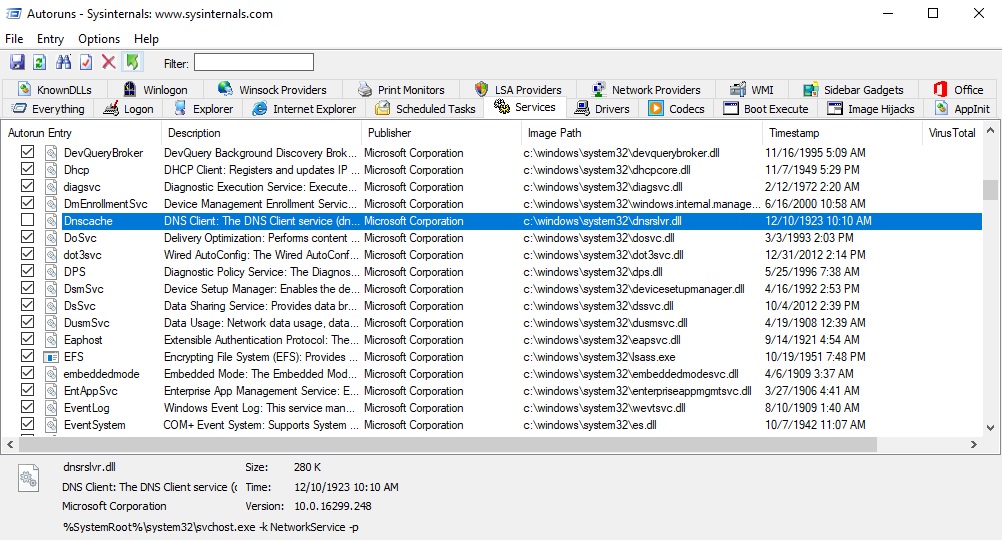
Windows 10 version 1709
- From
sysinternals.com download the latest version of AUTORUNS ... it
doesn't require installation.
- Run autoruns64.exe as ADMINISTRATOR
and wait until it finishes it's scan.
- In the program menu under OPTIONS, uncheck the "Hide Windows Entries"
option
- Go to the Services tab, scroll down to the Dnscache entry
and check the checkmark. [screenshot]
Regular users - You can simply delete the existing HOSTS
file, then download the default Microsoft HOSTS file that shipped
with your Windows version. Win8/7 [defaultwin7-hosts.zip]
Extract (unzip) and place the included HOSTS file in the default
location.
Note: the below locations are for the typical default paths, edit as
needed.
| Windows 10/8 |
= |
C:\WINDOWS\SYSTEM32\DRIVERS\ETC |
Next - reset the DNS Client service (see above) that you
should have disabled when installing the MVPS HOSTS file.
Or you can use the Microsoft method:
How do I reset the hosts file back to the default?
Note:
The Microsoft method does not include resetting the DNS Client
service ...
To view Hidden
Files
To allow yourself to view all file types, open Windows Explorer >
Tools > Folder Options > View tab
or Organize > Folder and search options > View tab
- Scroll down to the Hidden Files and Folders section
- Select: "Show hidden files and folders"
- Uncheck: "Hide file extensions for known file types"
- Uncheck: " Hide protected operating system files"
- Ok the Prompt, click Apply, Ok
Editors Note: general users should reverse the above when not
in need as this exposes all system files, including several on the
Desktop (desktop.ini) which you do not want to mess with ...
 For HostsMan users you can reset the DNS Client [screenshot]
Note: seems abelhadigital.com no longer exists.
I have saved a copy of
Hostsman, the installer version,
since several other
sites still offer Hostsman. You will still need to manually delete the existing
HOSTS file, then download the default Microsoft HOSTS file that
shipped with your Windows version.
Win8/7 [defaultwin7-hosts.zip]
Note: none of the included MVPS files make any changes to the
Registry or install any additional files to the Operating System.
If exists you can delete the "\Windows\System32\Drivers\Etc\HOSTS.MVP" which is a backup of your
previous HOSTS file ...
|